PIES Studio 1.9 · Documentation
PiLang — the language of functions and events
PiLang is how PIES Studio writes down what a function or an event does. Every function and every event is a list of steps: create a record, show a message, open a screen. On the Canvas those steps are boxes joined by arrows; in Code the same steps are lines of text, one step per line. The two are one function, not two copies: change a line in Code and the canvas shows the change, move a box on the canvas and Code reads it back.
This page is the reference for that text: how a line is written, how blocks such as IF work, what a comment and a variable look like, and every step with its arguments in order. For where the Code view sits in the editor, see The editor: Code and Canvas.
A first example
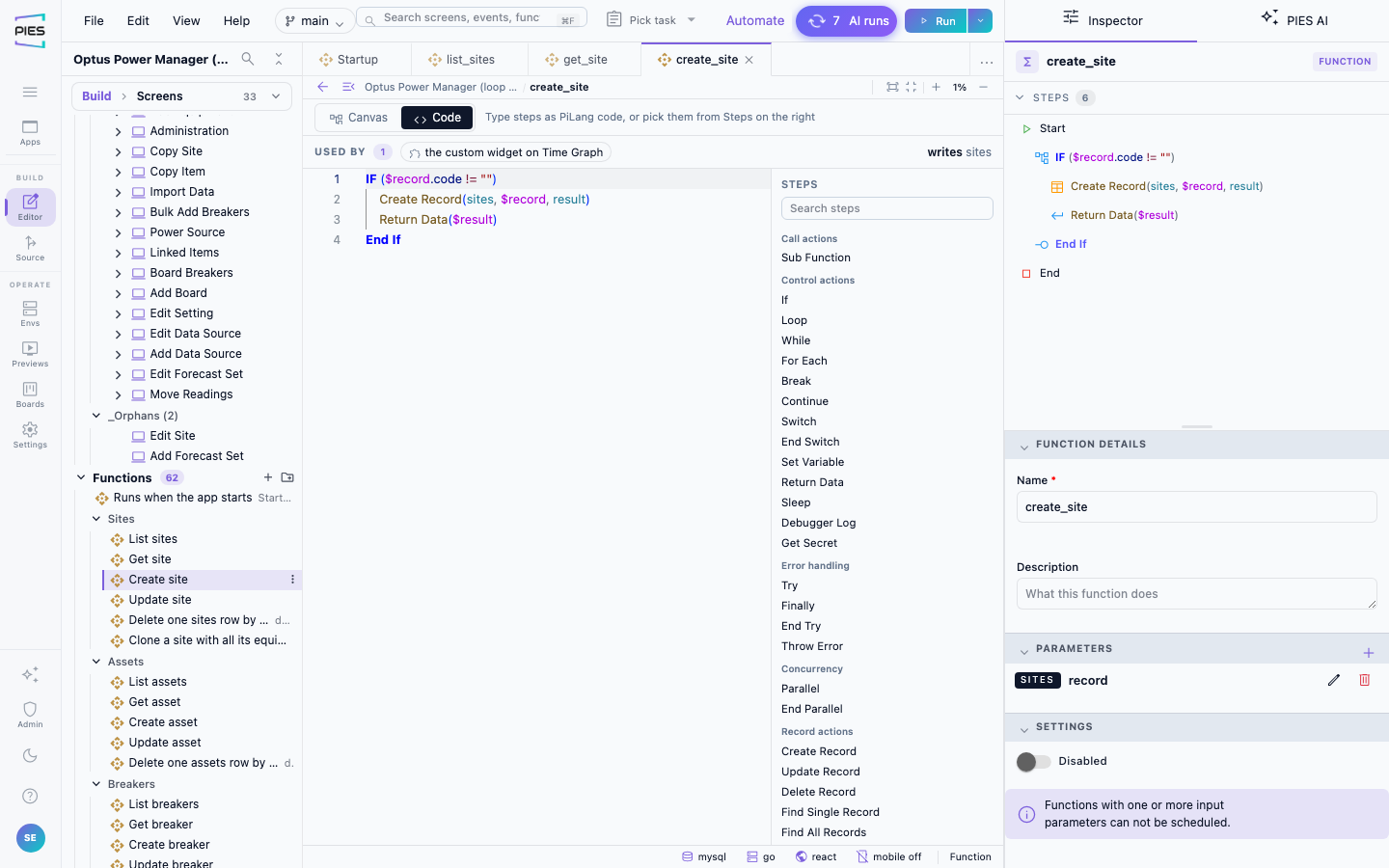
This function saves a new asset only when the record names a site, and returns what it saved:
IF ($record.site != "")
    Create Record(assets, $record, result)
    Return Data($result)
End If
Read it line by line:
IF ($record.site != "")opens a block: the lines under it run only when the condition holds. Here the condition is the record's site is not empty.Create Record(assets, $record, result)is one step: its name, then its arguments in brackets. It adds$recordto the assets table and keeps what it saved in a variable calledresult.Return Data($result)hands that saved record back to whatever called the function.End Ifcloses the block. Lines inside a block are indented by four spaces.
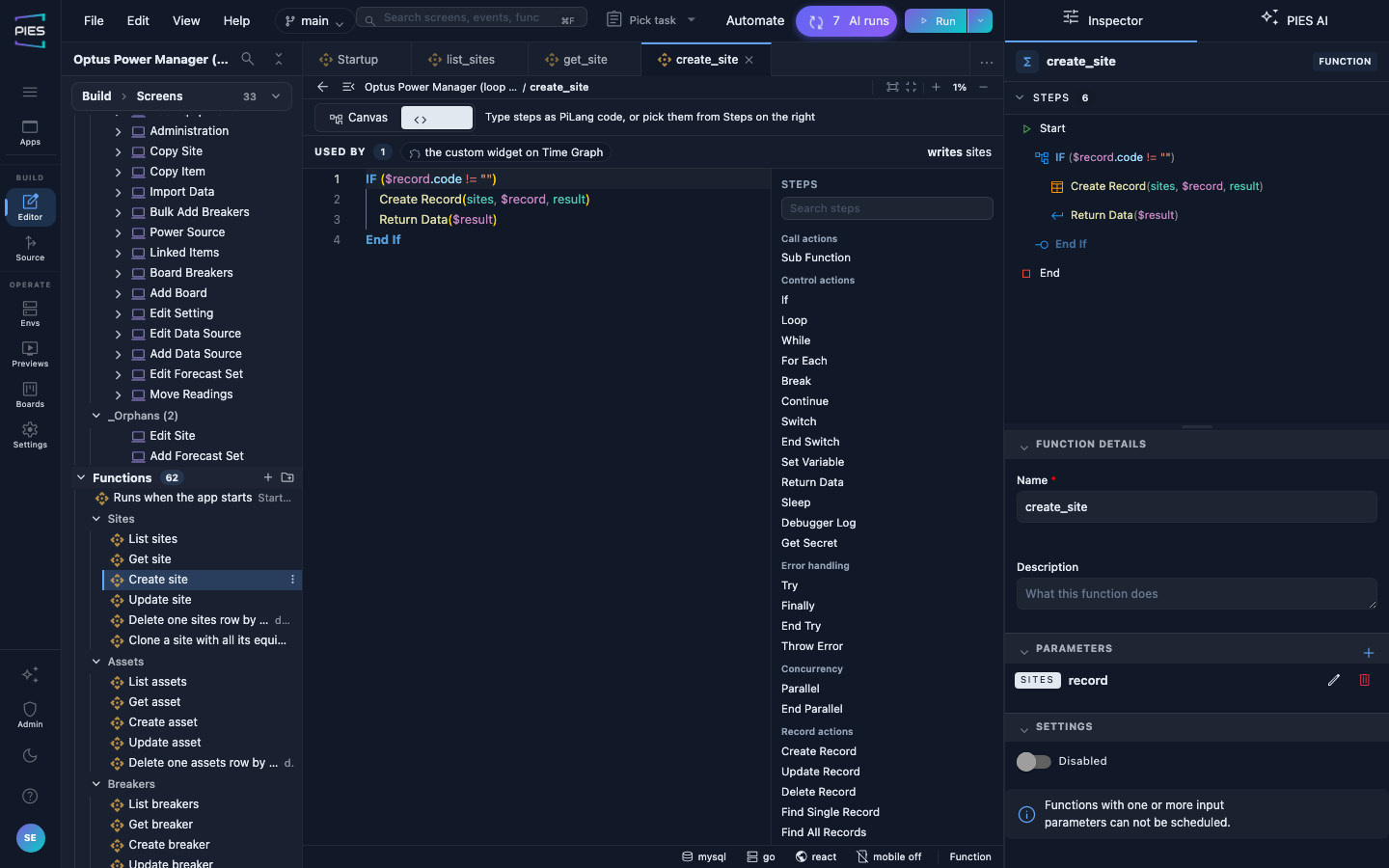
The canvas shows the same function as four nodes. Each node is titled with the step name, such as Create Record, with its arguments underneath, such as (assets, $record, result).
How a line is written
One step per line, as Step Name(arguments). The step name is the name you see in the Steps palette, such as Create Record, Show Message or Navigate to Screen. The arguments come in the order the step's properties show them in the Inspector, separated by commas. A step that takes no arguments is just its name.
Arguments can be positional or named. These two lines are the same step:
Create Record(assets, $record, result)
Create Record(table: assets, record: $record, result: result)
A named argument uses the argument name from the step table below. You can mix the two; named arguments may come in any order.
Text is double-quoted. Show Message("Order saved"). A value that starts with $ is a reference, not text, and has no quotes: Show Message($message).
Case does not matter when you type. create record(...), if (...) and end if are read the same as Create Record, IF and End If. Studio writes them back in the case shown on this page.
Start and End are implicit. Every function begins at Start and finishes at End; you do not write either line.
Trailing empty arguments are left off. Show Message("Done") and Create Record(assets, $record) are complete lines; an argument you leave out stays empty in the step's properties.
Blocks
A block is an opening line, the lines inside it indented by four more spaces, and a closing line. Typing an opening line adds its closing line for you.
IF, ELSE, End If
IF ($record.status == "Open")
    Show Message("Still open")
ELSE
    Show Message("Closed")
End If
IF (condition) runs the lines under it when the condition holds. ELSE is optional and runs its lines when it does not. End If closes the block. An IF without an ELSE simply skips to End If. The older word Otherwise is still read as ELSE.
Loops: LOOP, WHILE, FOR EACH, End Loop
FOR EACH ($asset IN $assets)
    Update Record(assets, id, $asset, $asset.id)
End Loop
LOOP (from, to)repeats its lines for each number from from to to.WHILE (condition)repeats its lines as long as the condition holds.FOR EACH ($item IN $list)runs its lines once for every entry in a list, with the current entry in$item.
All three close with End Loop.
Switch, Try and Parallel
Switch / Case, Try / Catch / Finally and Parallel blocks are not written in Code yet. A function that uses one opens read-only in Code, and you edit it on the Canvas. Typing one of those step names in Code is marked with … blocks are not written in the script yet — add them on the Canvas.
Comments
A line that starts with # is a comment. A comment belongs to the step on the line above it and moves with that step; a comment before the first step belongs to the function itself.
Create Record(assets, $record, result)
# keeps the saved asset for the reply below
Return Data($result)
Variables and the record
A value that starts with $ names something the function already has:
$recordis the record the function was called with, such as the row a form is saving. Its columns are$record.<column>, such as$record.siteor$record.status. After the dot, suggestions list that table's columns.- A step's result is a variable:
Create Record(assets, $record, result)keeps the saved record in$resultfor the steps after it. Set Variable(name, value)makes or changes a variable of your own, such asSet Variable(total, 0).FOR EACH ($item IN $list)makes$itemfor the lines inside the loop.
Conditions compare values with operators such as ==, !=, >, <, >= and <=, and can use true, false and null.
Suggestions, hints and marks
While you type in Code, Studio helps in three ways:
- Suggestions. At the start of a line, the step names. Inside the brackets, what fits that argument: your tables for a table, your screens, functions, events and elements,
$values, a table's columns after a dot, operators, andtrue/false/null. A result argument suggests a fresh name. - Argument hints. After
(and after each comma, a hint shows which argument comes next. - Explanations. Hovering a step shows what it does as a plain sentence, the same sentence the Outline uses.
A line Studio cannot read is marked as an error, and nothing changes until you fix it: for example "Create Recrd" is not a step — pick one from the list, Create Record takes 3 arguments (table, record, result), ELSE belongs inside an IF block or this IF has no End If. A line that reads but is incomplete, such as an unknown table or a missing argument, gets a muted note and is still saved, so you can keep typing.
Every step
The table lists every step that has its own argument order. Arguments marked * are required. Result shows whether the step's last argument is a variable that keeps what the step produced.
| Step | Arguments, in order | Result |
|---|---|---|
Create Record | table*, record, result | yes |
Save Record | table*, record, result | yes |
Update Record | table*, column, record, value, result | yes |
Delete Record | table*, column, value, result | yes |
Find Single Record | table*, column, value, result | yes |
Find All Records | table*, result | yes |
Find Multiple Records | table*, result | yes |
Set Variable | name*, value | no |
Return Data | value | no |
IF | condition* — written IF (condition) | no |
LOOP | from, to — written LOOP (from, to) | no |
WHILE | condition* — written WHILE (condition) | no |
FOR EACH | item, list — written FOR EACH ($item IN $list) | no |
Call Function | function*, input, result | yes |
Sub Function | function*, result | yes |
Sub Event | event* | no |
Navigate to Screen | screen*, params | no |
Navigate to URL | url* | no |
Show Message | message* | no |
Show Confirmation | message* | no |
Sleep | duration, unit (ms, s, min or hour) | no |
Throw Error | message*, code | no |
Debugger Log | text* | no |
Get Secret | secret*, result | yes |
Send Email | to, subject, result | yes |
Set Element Data | screen, element*, value | no |
Set Element Visibility | screen, element*, action (show or hide) | no |
Enable/Disable Element | screen, element*, action (enable or disable) | no |
Set Element Focus | screen, element* | no |
Set Element Style | screen, element* | no |
Read External File | file*, result | yes |
Every other step — documents, AI, schedules, integrations and the rest of the Steps palette — takes its simple settings in the order its properties show them in the Inspector, followed by result when the step produces something. Hovering the step name in Code, or typing ( after it, shows its arguments.
Where the words appear
The code line is the step's name in every editor view: in Code, on the canvas node, in the Inspector's Steps list and in the Steps palette. The plain-English sentence for a step, such as Shows the message "Order saved", is still what you read in the Outline, when you hover a step, and when you ask PIES AI what something does.